
Manual contents
User manual
App settings
Adjust recording accuracy and intervals, display settings, calendar integration, and purchases.
Location recording settings
Open the bottom Config tab and find Location Record Configuration. Try a short record with the Normal Resolution preset first, then adjust for your needs.
- Config Preset
- Choose high, normal, or low resolution to set accuracy and recording intervals together. More detailed recording may increase data size and battery use.
- Desired Accuracy
- The accuracy requested from location services. Choosing a value does not guarantee that accuracy will be achieved.
- Distance Filter
- An approximate movement distance used to request the next location update. A smaller value helps capture more detailed routes.
- Minimum Interval
- Filters out points received within the specified number of seconds after the previous point.
- Accuracy Threshold
- An upper limit for location error. If set too strictly, fewer points may be recorded.
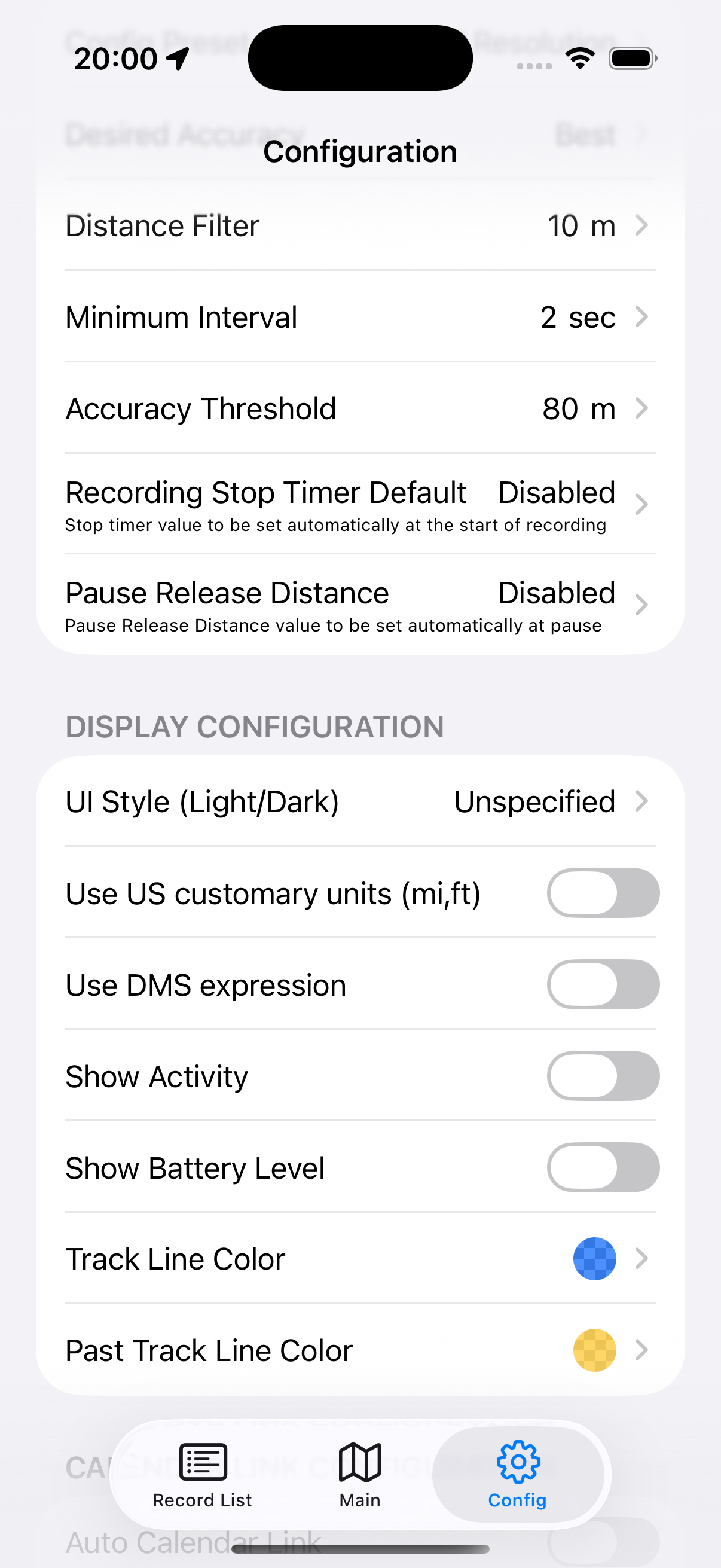
Default stop timer and pause settings
- Recording Stop Timer Default
- The automatic stop time applied when recording begins. When disabled, no stop timer is set at the start.
- Pause Release Distance
- Resumes recording after moving the specified distance from the paused location. When disabled, resume manually.
Stopping and pausing are different. For instructions, see Recording & maps for details.
Display settings
- UI Style (Light/Dark)
- Choose a light or dark appearance. Unspecified follows the device's setting.
- Use US customary units (mi, ft)
- Display distance and altitude in miles and feet.
- Use DMS expression
- Show latitude and longitude in degrees, minutes, and seconds.
- Show Activity / Show Battery Level
- Show available activity estimates and the battery level at recording time in Record Detail's point list.
- Track Line Color / Past Track Line Color
- Set colors for the current route and previous routes overlaid on the Main screen.
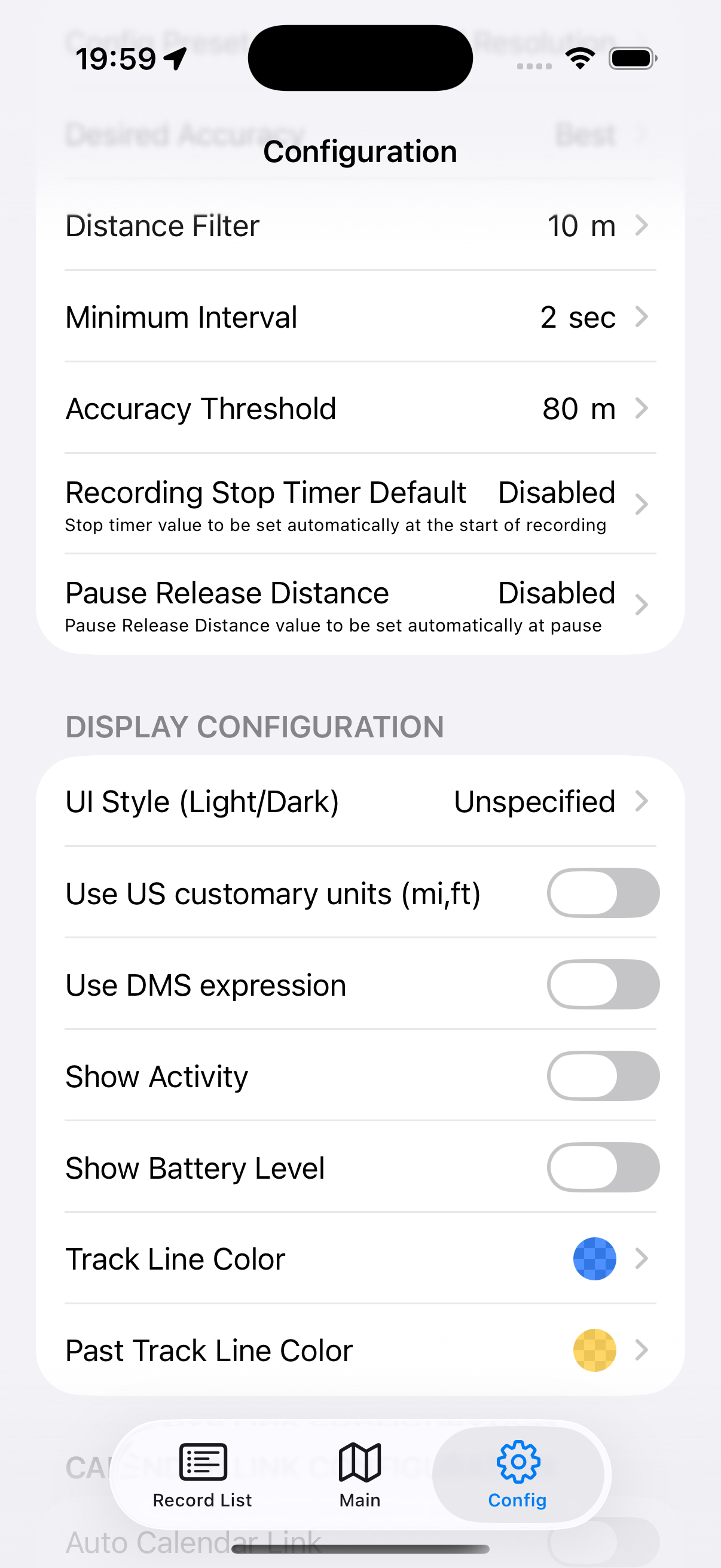
Calendar integration
To write trip information to a calendar when recording ends, open Calendar Link Configuration and select a destination calendar and enable Auto Calendar Link to turn it on.
Calendar access permission is required. Nothing is written if no calendar is selected. Check the destination: other people may see trip information in a shared calendar.
Tags and map cache
Tag Management lets you add, rename, or delete organizing tags. To apply them to a record, see Organize with tags for details.
Manage Map Cache Data shows the file count and space used by Japan GSI map cache data. Removing the cache does not delete travel records, but map data must be downloaded again when needed. This map cache feature is available only for the Japan region.
Export all data as CSV is covered under Backup in this manual.
Purchase and restore a paid plan
Config → Go to Purchase/Restore Page opens monthly and one-time purchase options. Check the in-app price, terms, and included features before purchasing.
Pro offers ad removal, removal of record count limits, record combining, multiple GPX export, and full CSV backup export.
If you purchased before, use the same Apple Account and choose Restore under purchase restoration. Restoring purchases does not restore your journey data.
Manage or cancel a monthly subscription in the iPhone Settings app under your Apple Account's Subscriptions. Deleting the app does not cancel it. See Apple's subscription cancellation guide for details.
Contact, version, and policies
Inquiry / Request / Bug Report opens the operator's contact form. Include the action, app and OS versions, and circumstances of the issue.
Find the version and build number near the bottom of Config. Terms of Use and Privacy Policy are available in the app information section.