Getting started

A short outing.
Your first record.

Start before you leave. Stop when you arrive.
Then revisit the route on a map.
Try it on a familiar path first.

See setup and steps Do not have the app yet?

For iPhone · Free to download

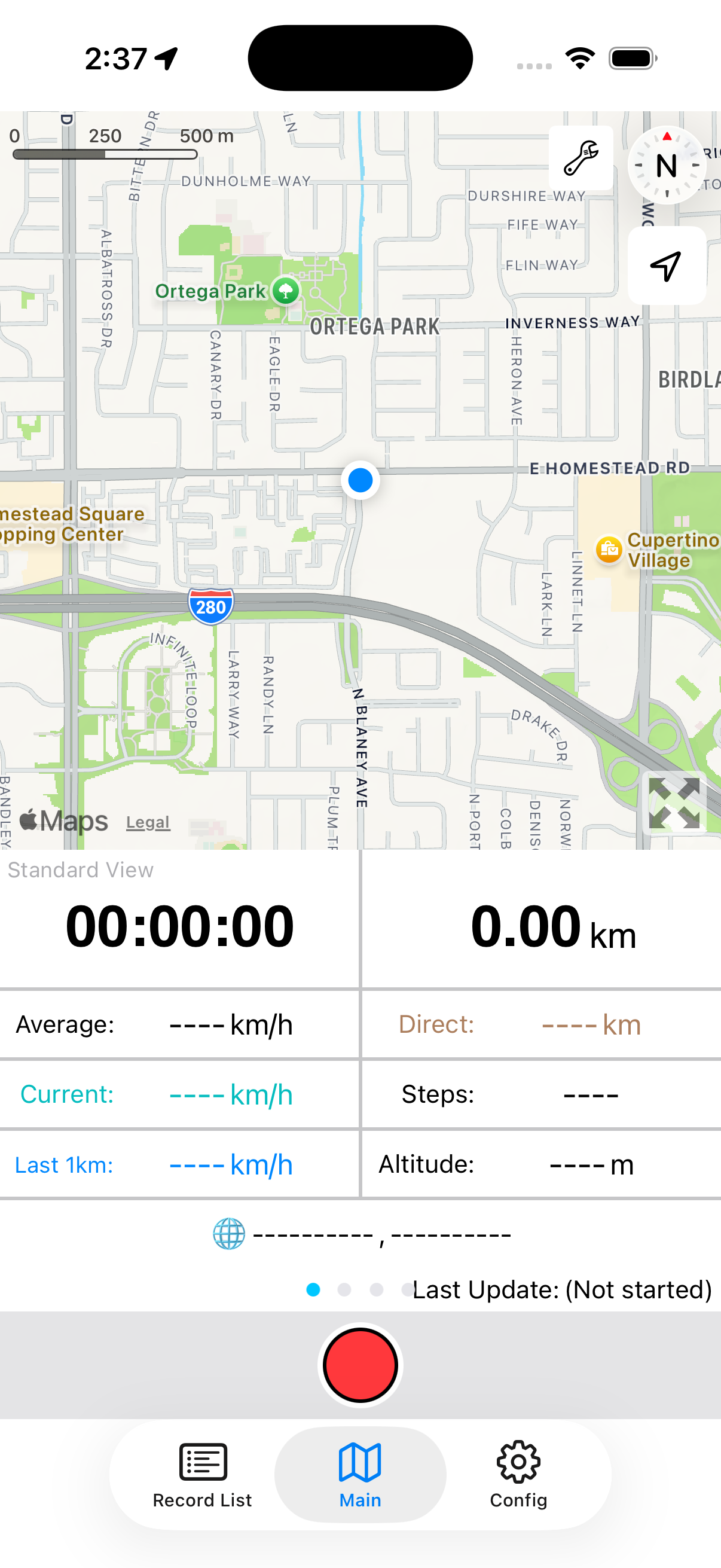
Start before departure Actual Main screen with the red recording button below the map, time, and distance.
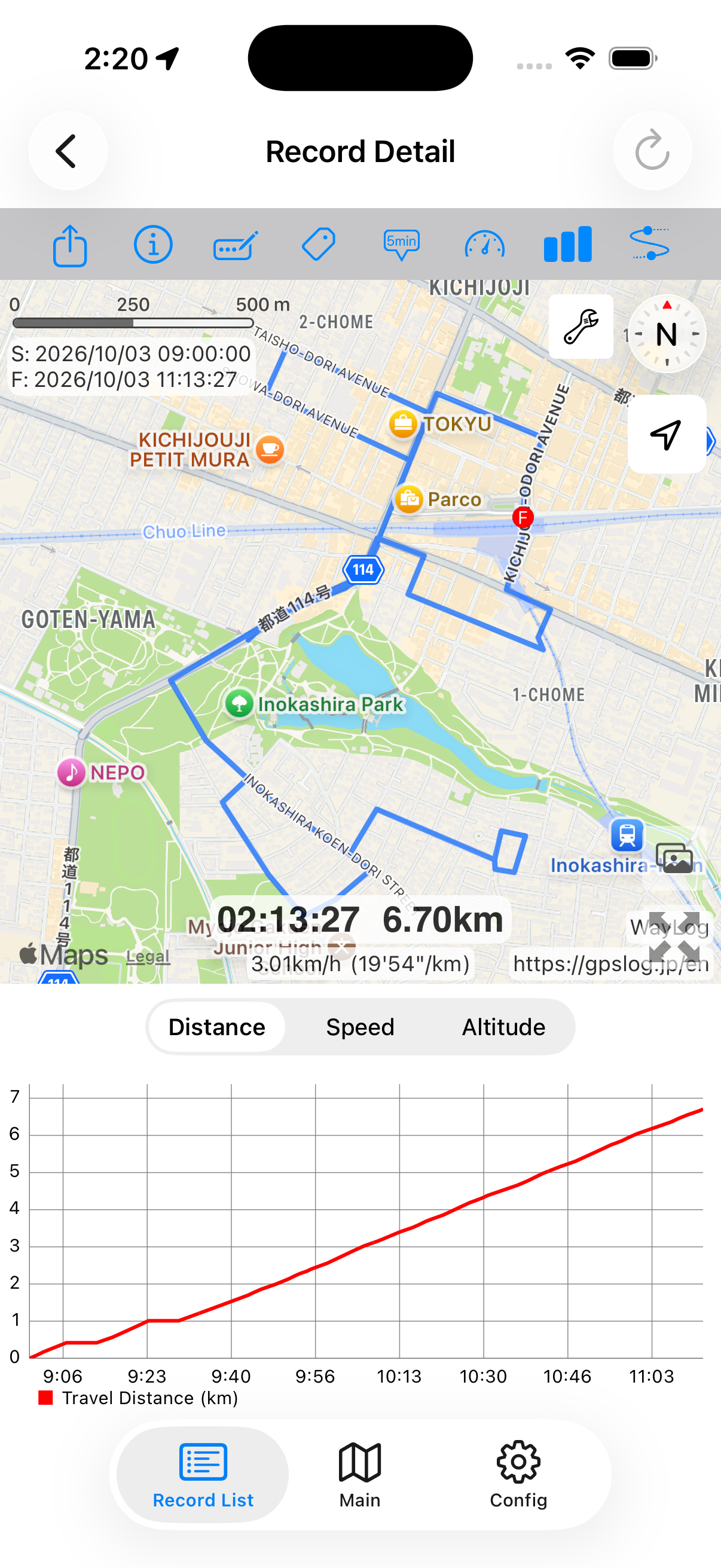
Review the route afterward Actual Record Detail with a blue map route and distance chart. Synthetic example.
Actual app screens.
Maps, routes, and values are synthetic examples.

Just the first time

Open the app.
Follow the setup guide.

On first use, the app explains location access and other permissions.
Review the prompts, Terms of Use, and Privacy Policy before proceeding with the start button.

Location

Used to record where you go. Choose Allow While Using App in the initial location prompt.

Motion & Fitness

Enables step counts and activity information. This prompt may also appear when recording starts.

Notifications and advertising prompts

Read the prompts and choose your preferences. You can record without allowing advertising tracking.

Prompt order and appearance vary with iOS, app version, and previous settings.

STEP 01

Before you set off,
start recording.

  1. At the bottom of the screen, tap Main.
  2. Tap the red circle to start recording.
  3. Check elapsed time and the recording status before you begin traveling.
Red recording circle on Main, with Record List, Main, and Config tabs below.
Start with the red circle View full-size screen

STEP 02

When you arrive,
stop recording.

  1. While recording, tap the red square stop button.
  2. If the stop confirmation appears, tap OK.
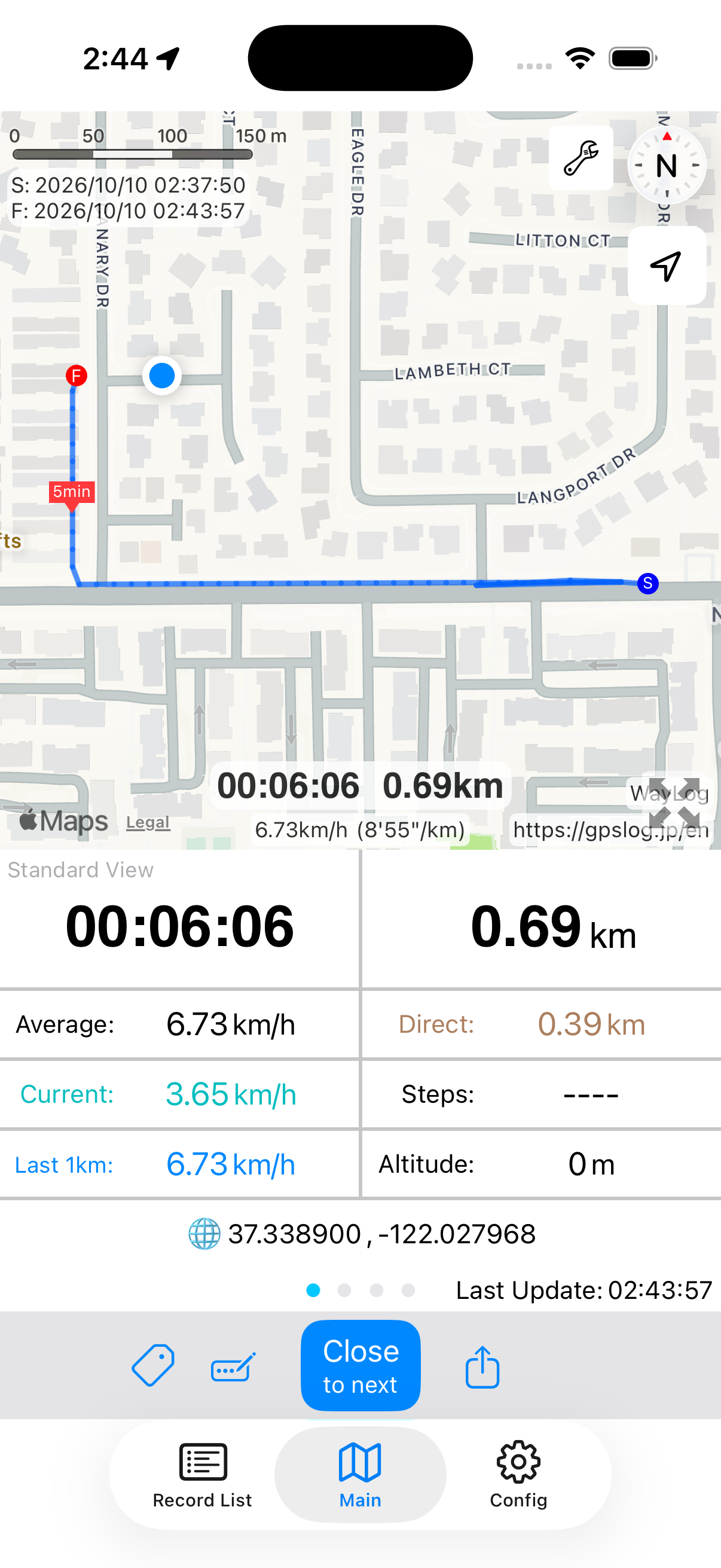
  3. The record is saved, and the route, time, and distance appear.

The stop confirmation may not appear, depending on app settings.
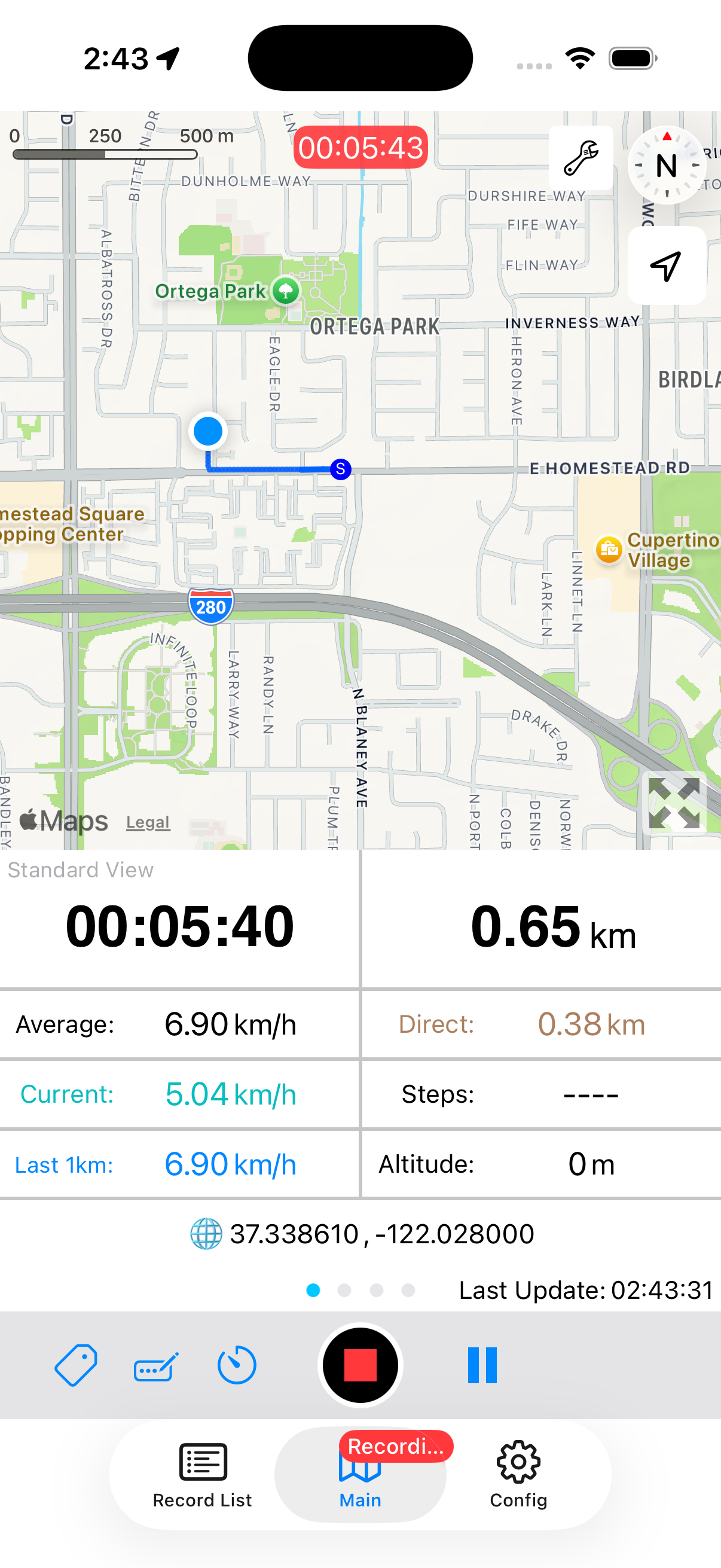
Actual Main during recording. A red square in a black circle stops the record; the blue pause button is beside it. Synthetic example.
Stop with the red square View full-size screen
Actual Main after recording, showing start S, finish F, and Close to next. Synthetic example.
After stopping, review the route and results View full-size screen

STEP 03

The paths you traveled,
revisited on a map.

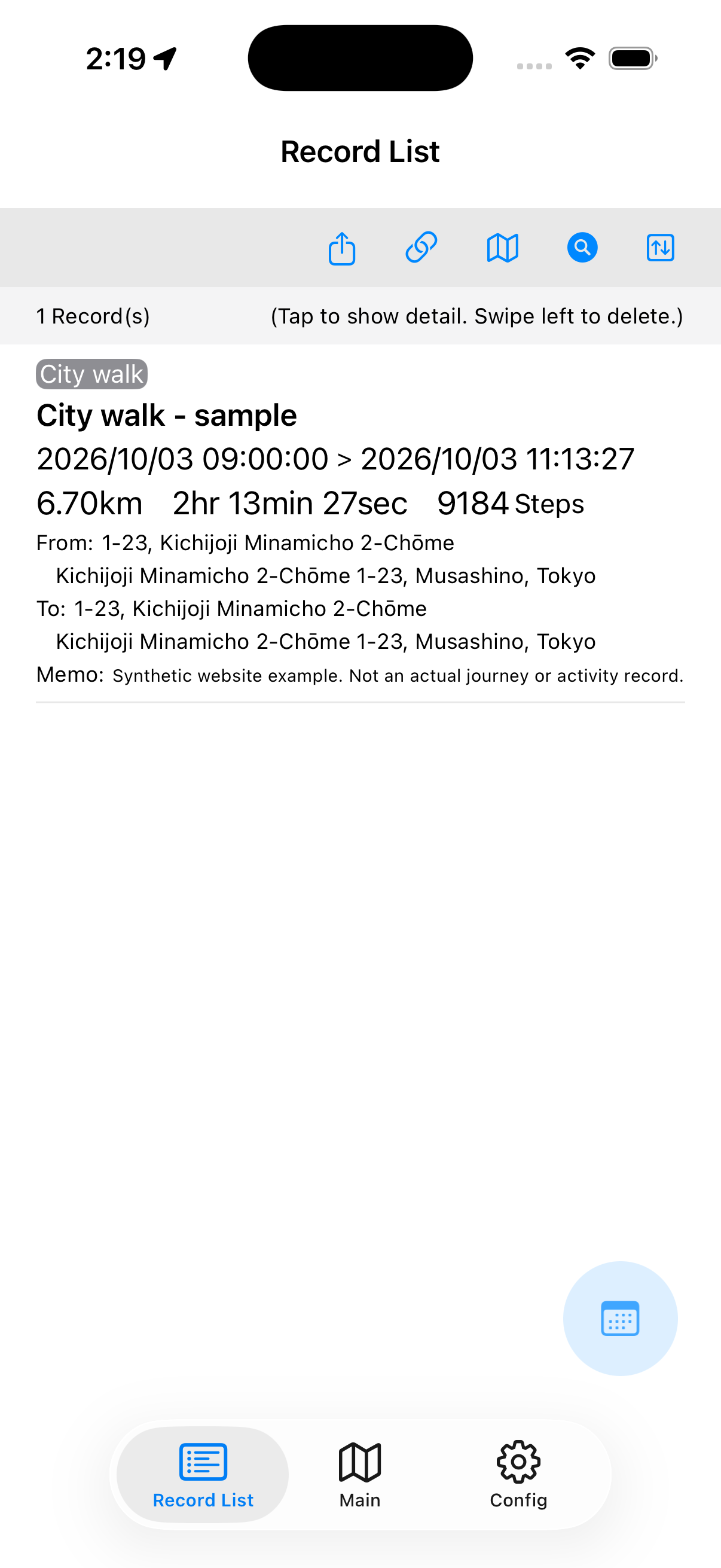
  1. At the bottom of the screen, tap Record List.
  2. Tap a record to open Record Detail.
  3. Check the route on the map. The bar-chart icon also opens charts.
Actual Record List with a saved synthetic example. Tap a record to open its details.
Open a record from the list View full-size screen
Actual Record Detail with a blue route and distance-over-time chart. Synthetic example.
Review maps and charts View full-size screen

Screens show version 6.0 in the simulator. Maps, routes, dates, and values are fictional examples, not actual travel history. Screens show the ad-free Pro version.

Once you know the basics

Make the next record
a little easier.

Pause and resume during a trip

While recording, use the pause button beside Stop. Check the paused status, then tap the same button to resume.

Give your record a name

Use the pen icon after stopping to enter a title, then tap Save. Choose a recognizable name, such as Morning walk.

For detailed controls, see the Manual.

Questions about your first record

My current location is missing from the map.

Check location permission for WayLog in iPhone Settings. GPS reception may be poor indoors or underground, so try a place with a clear view of the sky, too.

I cannot find a Save button after stopping.

Stopping saves the record. Check Record List. Save in the title editor saves the name, not the recording itself. Empty records without location points may not be retained.

What is the difference between pausing and stopping?

Pausing lets you resume the same record later. Stopping finishes that record. Pause if you want to continue the same journey.

The app looks a little different from this page.

iOS, app version, and display settings can change the appearance. Use Main and Record List tabs and the red circle and square as guides. For more detail, see the Manual for details.

Once your first record is saved

Which journey
will you save next?

Everyday travel and detours on a trip.
Find ideas that fit the way you use WayLog.

Start on a familiar path

On your next trip,
your first record.

Open WayLog,
and tap the red circle before departure.

Download WayLog

For iPhone · Free to download