
Manual contents
User manual
Sharing & data management
Export map images and GPX, back up to CSV, and import, combine, or delete records.
Share or save a map image
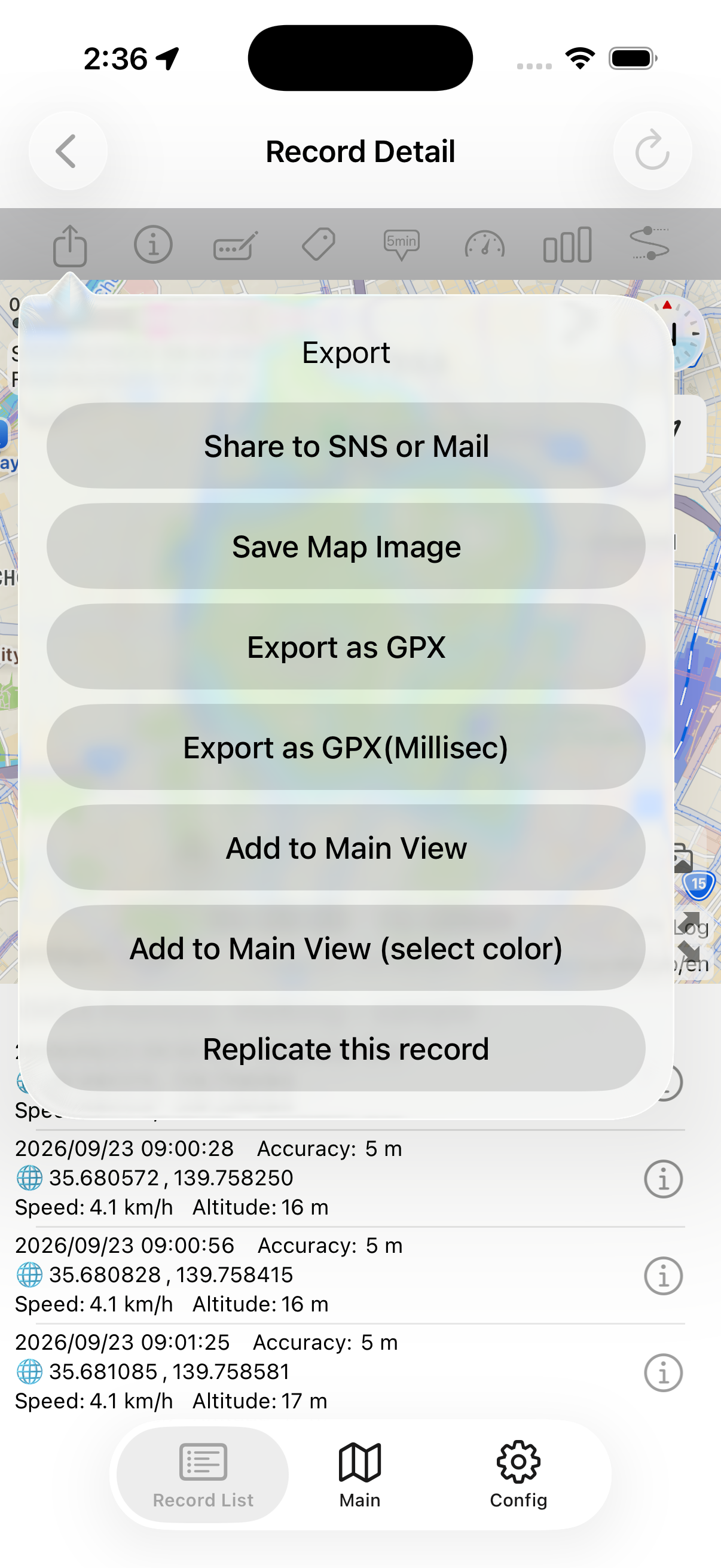
- Open a record from Record List and tap the share button in Record Detail.
- Choose Share to SNS or Mail or Save Map Image.
- Check the destination shown before proceeding.
Japan GSI overlays are not included in exported map images.
Routes may include home or work locations. Review the image or file and the recipient before sharing.
Export GPX files
From Record Detail's share button, choose Export as GPX and select a destination or compatible app in the share sheet. You can also select records from Record List's share button.
Export as GPX(Millisec) includes millisecond timestamps. Choose regular GPX if you are unsure whether the receiving app supports it.
Exporting several records as GPX files in a ZIP is a Pro feature . Choose multiple export from the list's share menu, then select the records.
GPX lets compatible apps use your route. For a backup of all WayLog data, including tags, use CSV export below.
Back up all data as CSV
Config → Export all data as CSV exports records and related data together. This is a Pro feature.
Choose a destination such as Files and check the exported file. Backups are created manually and reflect the data at export time.
Restoring purchases and restoring records are separate actions. Purchase restoration does not bring back lost travel records.
Import GPX or CSV
Select a GPX file or a WayLog backup CSV in Files or another app and open it with WayLog from the share menu. Check the filename and contents before importing.
CSV import offers replacement restoration and an option to add data.
Read the confirmation carefully and back up needed records first. Choose Add to keep current records.
This does not import arbitrary spreadsheet CSV files. Use WayLog's backup format. GPX compatibility can also depend on the source format.
Overlay previous routes on Main
From Record Detail's share button, choose Add to Main View. Choose Add to Main View (select color) to set the route's color.
Use this display to compare current and previous routes. It is not navigation. Remove the overlay through Main's wrench menu using the past-track removal option.
Combine or delete records
Combine two records (Pro)
Use Record List's link-shaped combine button and select two records. Review the confirmation before combining them into one time-ordered record.
Delete a record
Swipe a record left in the list and choose Delete. Check its title and dates first.
Combining cannot be undone, and deleted records cannot be restored through normal controls. Export needed data before editing.