
See your route on the map
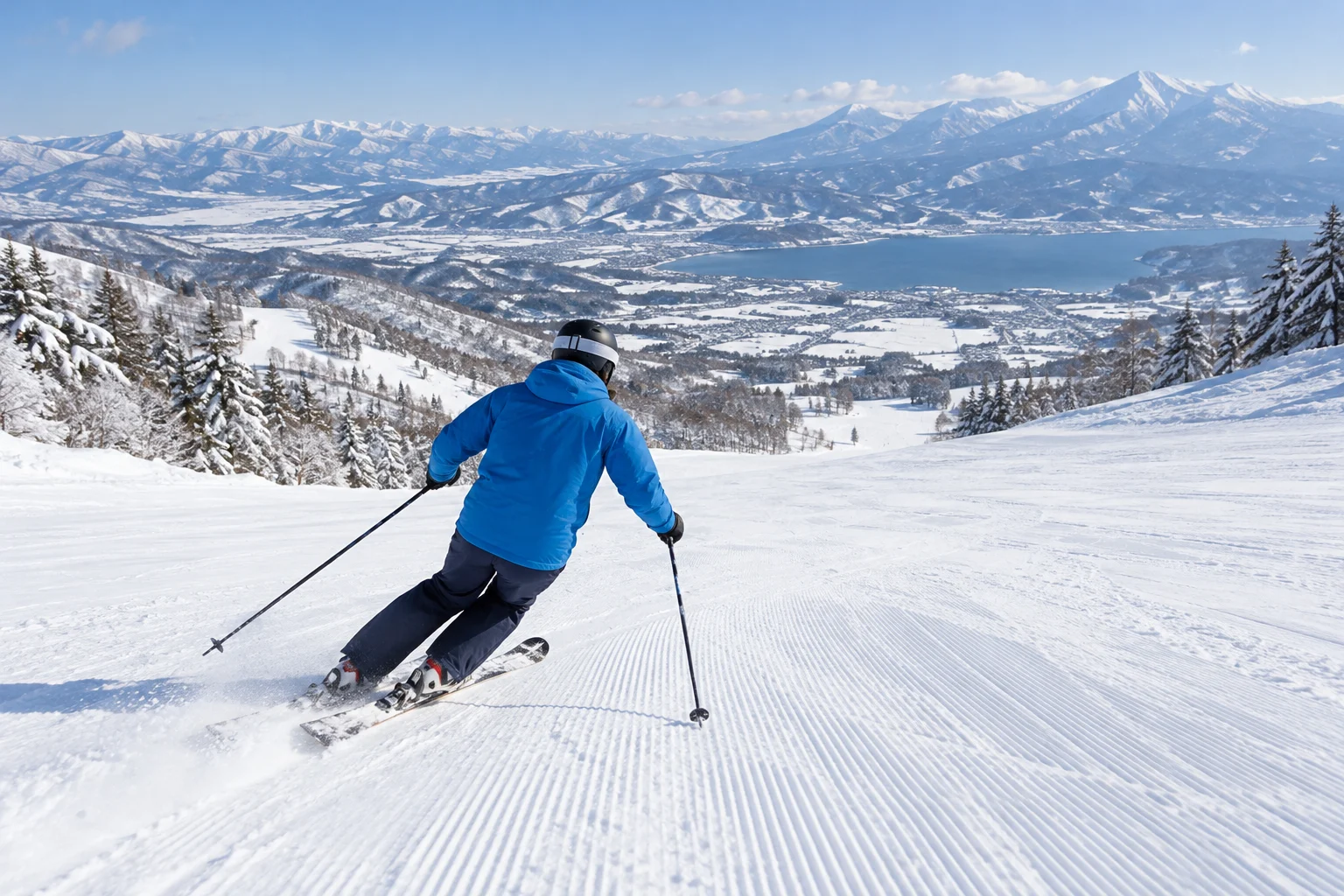
Where did you ski, and which slopes did you repeat? Follow the recorded route to review your movements.
Record your ski days
Favorite runs or a new resort. Save your route, distance, and speed, then look back on your ski day on a map.
Record your journey with WayLogFor iPhone · Free to download
When WayLog can help
The first run of the morning and a slope you returned to again and again. Add maps, distance, and speed to your memories and revisit the day's skiing.
Where did you ski, and which slopes did you repeat? Follow the recorded route to review your movements.
See the distance you recorded. This includes lift rides and other travel during recording, as well as skiing.
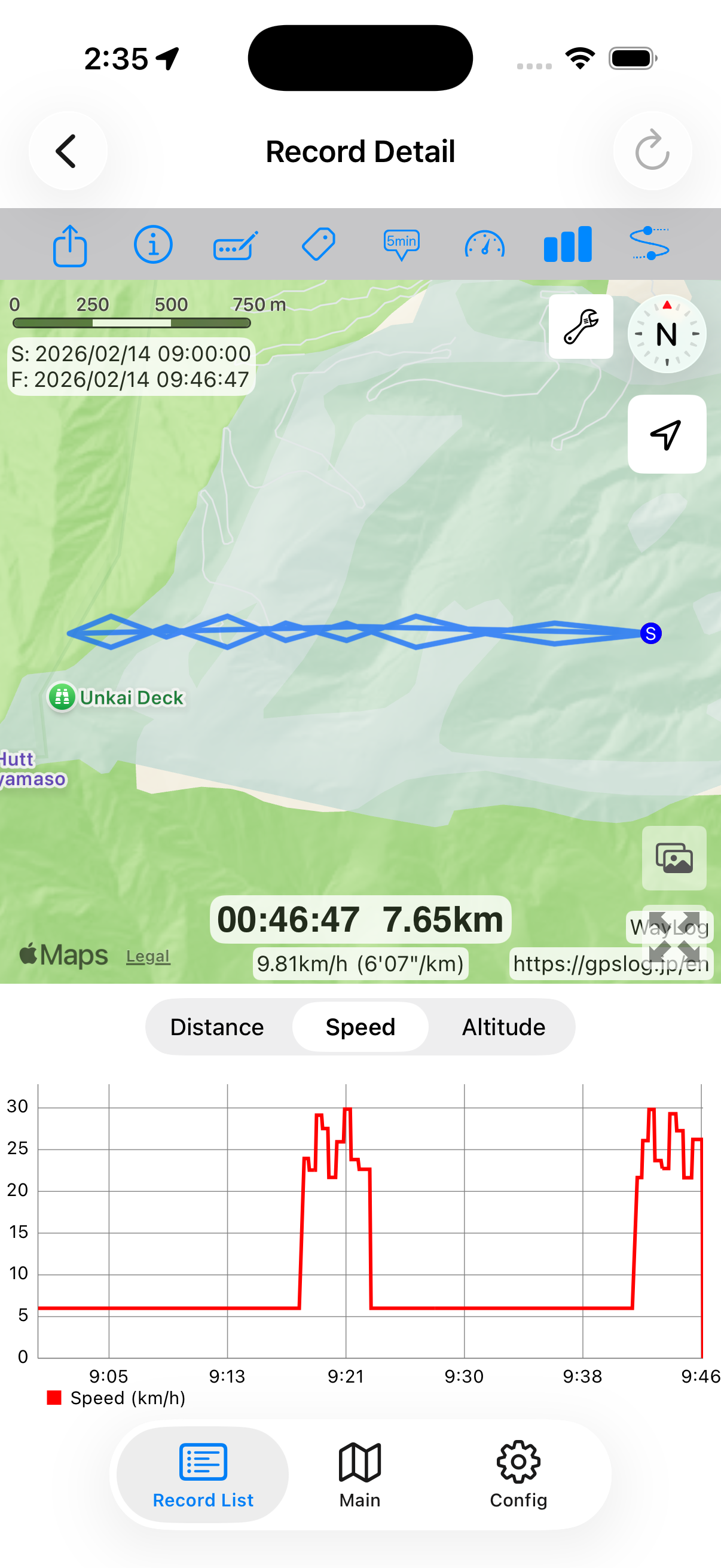
Use speed charts and route colors to see changes during recording. After skiing, check where your speed changed.
Before your first trip, check compatibility and the settings you need.
Check location settings and your battery, then begin recording in a safe place. Secure your iPhone before skiing.
Record skiing and lift rides. Pause during breaks if useful. Stop in a safe place before checking the screen.
Stop recording and check your route, distance, and speed. Review the day, including lift rides, and explore sections that interest you.
Detailed instructions: Recording and pausing / Explore record details / Using Apple Watch
Look back on the map
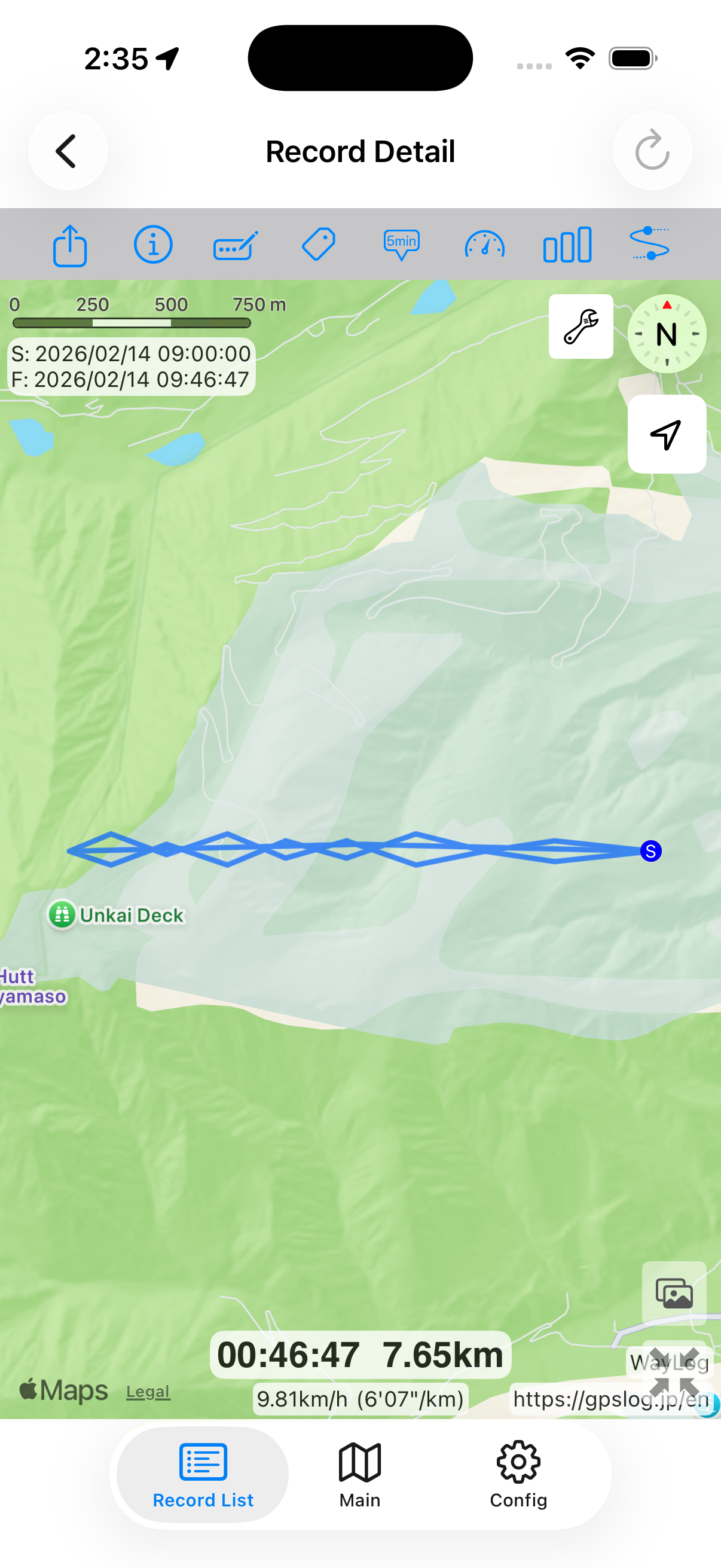
Repeated runs and journeys to another area form one route on the map. See where you traveled throughout the day, including lifts and other resort travel during recording.
A fictional example showing how a record looks. It is not an actual journey or measured distance.
A closer look at your journey
Review a speed chart or color the route by speed. Point-to-point information also shows time, distance, and speed for a selected section. Use GPS speed as an estimate for looking back on the day.
Keep records your way
Put the resort name in a title and snow conditions or favorite runs in notes. Add your own Skiing or Family tags and combine them with dates or keywords to find past records.
Example tags you can add yourself
An example of how to organize records. You choose your own tags; they are not assigned automatically.
It includes lift rides, walking, and other travel while recording. This page does not describe automatic separation of lifts and runs or run counting. To record each run separately, start and stop in a safe place.
GPS reception and recording intervals can introduce errors. Use speed as a guide to changes in your movement, rather than a precision measurement of instantaneous speed.
Yes. Apple Watch records on its own. Maps and detailed route information are viewed on iPhone. See the manual for instructions.
WayLog records travel. It does not identify official trail names, provide opening information, or guide you around trails. Use the resort's signs and official trail map.
Check your battery and location settings before leaving. Continuous GPS use consumes battery. You do not need to operate the screen while skiing to save a record.
WayLog is free to download and use. Check the App Store and the app for optional features and purchase terms.
No. WayLog cannot recreate a route traveled before recording started. Begin recording before the journey you want to save.
Everyday trips and roads you have never traveled.
Your own records, ready to revisit.
For iPhone · Free to download