
Record on Watch alone
Record a journey on Apple Watch even when you are away from your iPhone.
WayLog on Apple Watch
Record with Apple Watch on its own. Capture walks and outings from your wrist, then view maps and detailed information on iPhone.
Record your journey with WayLogFor iPhone · Free to download

When WayLog can help
Start on your Watch before you leave, then stop when you arrive. Choose the recording method that fits your day.
Record a journey on Apple Watch even when you are away from your iPhone.
See elapsed time, distance, and other information from an ongoing iPhone recording on Apple Watch.
Use iPhone to see your route on a map. Combine recording from your wrist with reviewing your journey later.
Before your first trip, check compatibility and the settings you need.
Check compatibility and app settings, then start recording on your Watch.
Head out on your usual walk or outing. Stop recording when you arrive.
Check that the record has transferred, then review the map and distance on iPhone.
For current compatibility and features, see the App Store listing for more information.
Look back on the map
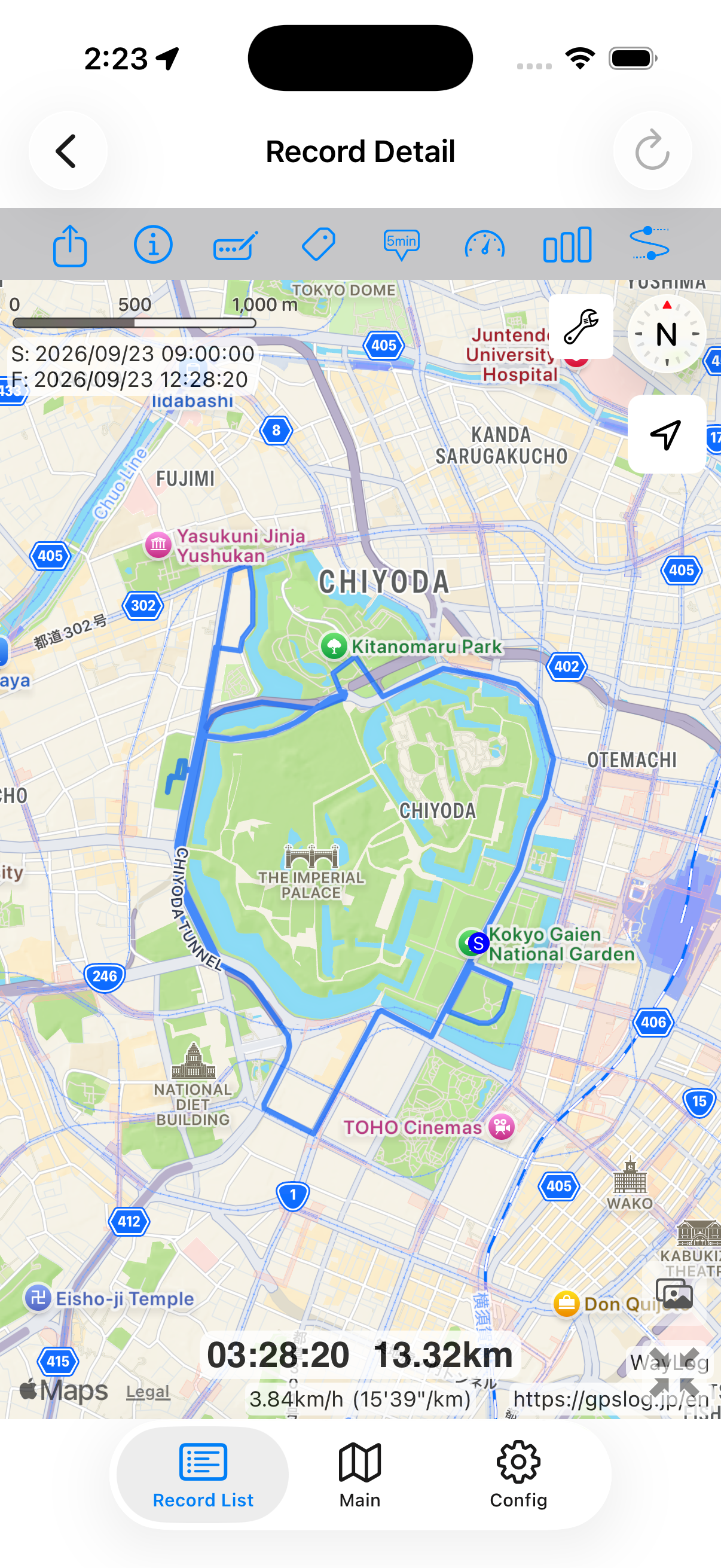
After checking the transfer status, view records from Apple Watch on your iPhone map. Use your Watch for recording and iPhone for reviewing.
This map shows synthetic data imported into iPhone. It is not an actual journey, measured distance, or record transferred from Watch.
A closer look at your journey
Use iPhone to see routes recorded on your Watch. Check the transfer status before reviewing them.
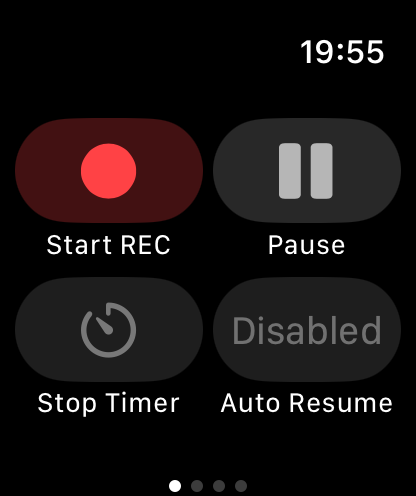
The left screen shows Watch controls before recording; the right shows synthetic data on iPhone. These are not successive screens of a Watch recording and transfer.
Keep records your way
Find saved records on iPhone and add tags or notes when useful. Organize walks and trips in a way that works for you.
Example tags you can add yourself
An example of how to organize records. You choose your own tags; they are not assigned automatically.
Yes. Apple Watch can record on its own. Maps and detailed route information are viewed on iPhone.
The reviewed App Store listing requires iOS 18.0 or later and watchOS 10.0 or later. Check the latest requirements before downloading.
WayLog is free to download and use. Check the App Store and the app for optional features and purchase terms.
No. WayLog cannot recreate a route traveled before recording started. Begin recording before the journey you want to save.
Everyday trips and roads you have never traveled.
Your own records, ready to revisit.
For iPhone · Free to download