
Distance while recording
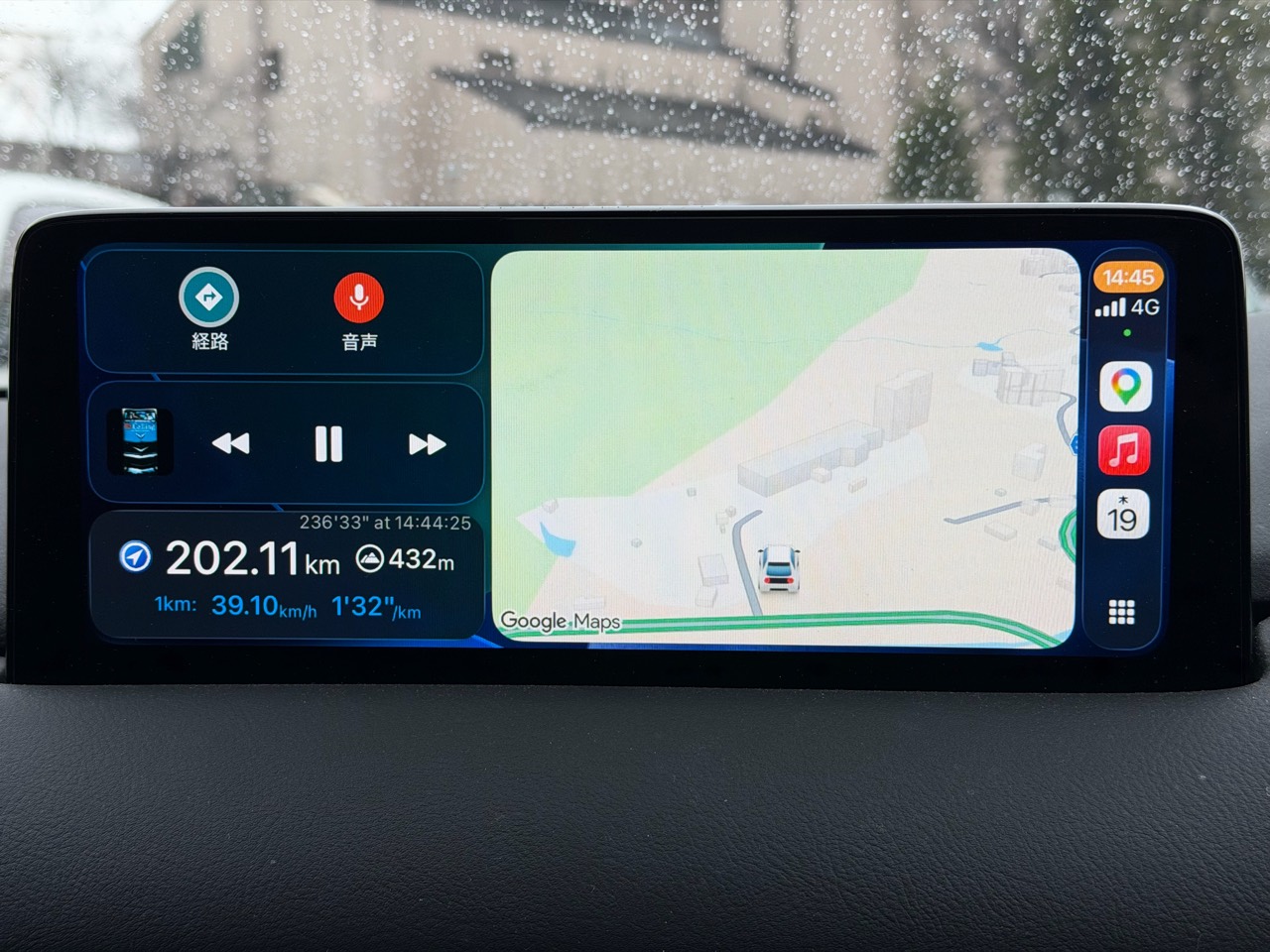
See your distance traveled in CarPlay's split-screen dashboard.
WayLog with CarPlay
While recording on iPhone, see trip information in CarPlay's split-screen dashboard. Keep an eye on the journey you are recording from your car's display.
Record your journey with WayLogFor iPhone · Free to download
When WayLog can help
Start a recording, then check distance, altitude, and other details on your car's display. Review the route on iPhone after you arrive.
See your distance traveled in CarPlay's split-screen dashboard.
Display altitude, plus speed and pace for the most recent kilometer.
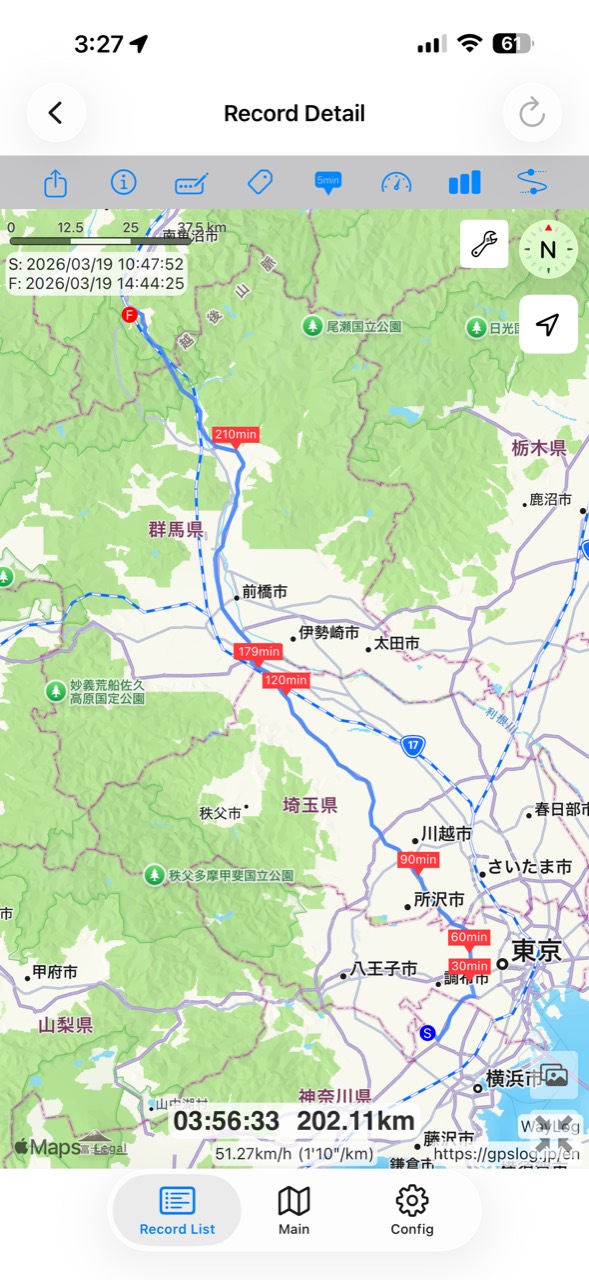
Combine CarPlay trip information with route recording on iPhone, then look back on the map after you arrive.
Before your first trip, check compatibility and the settings you need.
While parked, check your CarPlay connection and display settings, then start recording on iPhone.
Let recording continue without operating the app while driving. Trip information appears on a supported display.
Stop recording after you arrive and check the route and distance on iPhone.
For current compatibility and features, see the App Store listing for more information.
Look back on the map
Use CarPlay to check information while recording. After your drive, see the route and distance you saved on your iPhone map.
This actual trip was recorded on March 19, 2026. The CarPlay photo and iPhone screen show the same 202.11 km journey lasting 3 hours, 56 minutes, and 33 seconds. The iPhone screenshot uses the app’s English interface; some map place names remain in Japanese.
A closer look at your journey
CarPlay displays information during recording; iPhone lets you review the route. Use each screen where it fits best.
WayLog's recording information is at the lower left. The map on the right is Google Maps, not navigation provided by WayLog. Tap the photo to see the original full image.
Keep records your way
After arrival, find past records by date or tag. Organize drives and roadside stops using tags that make sense to you.
Example tags you can add yourself
An example of how to organize records. You choose your own tags; they are not assigned automatically.
This page describes recording information shown during a trip. For directions to your destination, use your preferred navigation app.
You need a CarPlay-compatible vehicle or display and a supported iPhone. Check your car's display settings and the App Store for current requirements.
WayLog is free to download and use. Check the App Store and the app for optional features and purchase terms.
No. WayLog cannot recreate a route traveled before recording started. Begin recording before the journey you want to save.
Everyday trips and roads you have never traveled.
Your own records, ready to revisit.
For iPhone · Free to download